


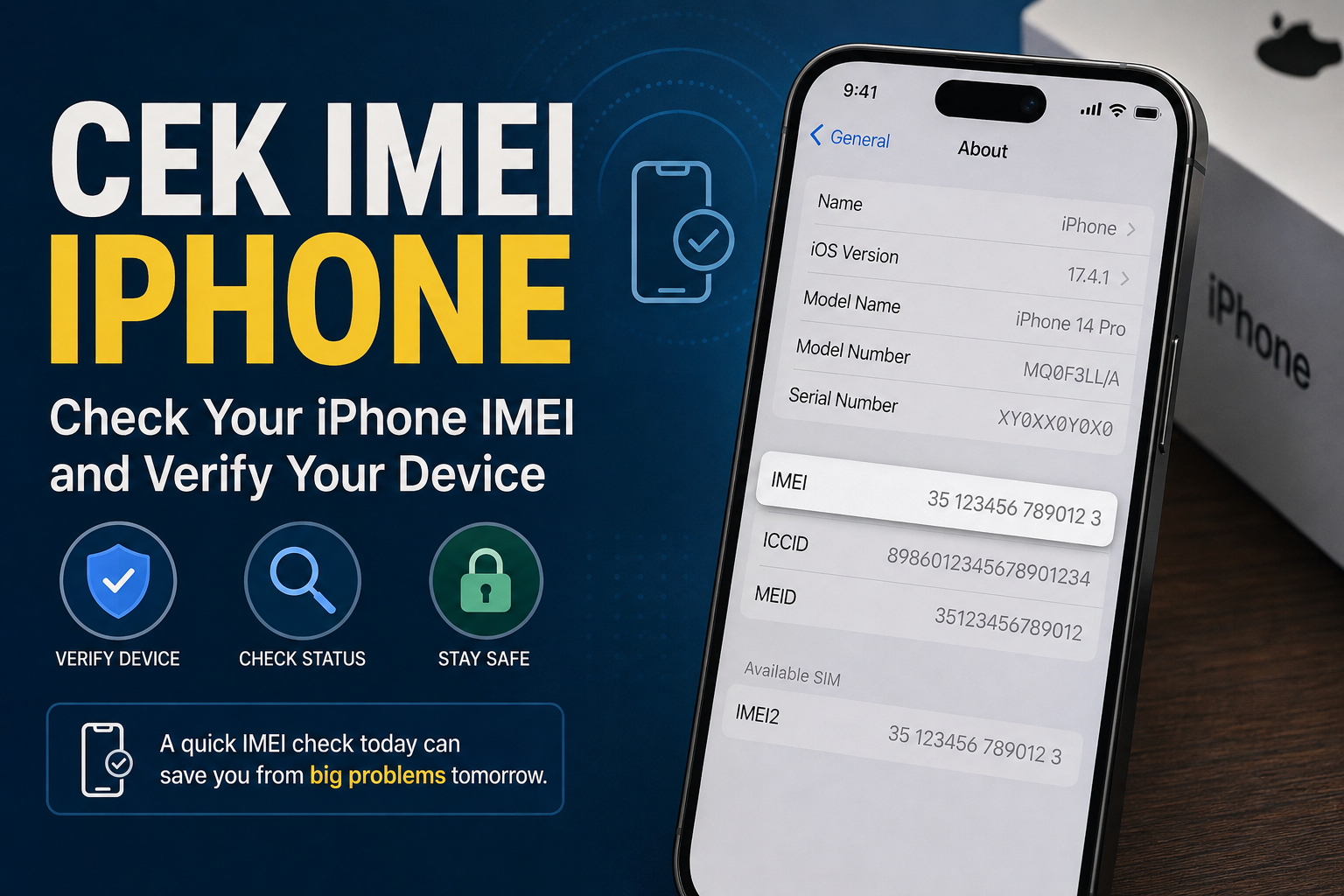
Buying an iPhone is exciting until you start wondering whether the phone is genuine, properly registered, carrier-locked, or carrying some hidden problem from its previous owner. That’s where cek IMEI iPhone becomes useful.
IMEI stands for International Mobile Equipment Identity. Think of it as a unique identification number for a cellular device. It can help you identify an iPhone and, depending on your country and carrier, check whether the device is recognized, blocked, or eligible to use local mobile networks.
The good news? Finding your iPhone’s IMEI takes less than a minute. The more important part is knowing what to do with that number once you have it.
If you’re buying a used iPhone, this simple check can save you from an expensive headache.
Table of Contents
- What Is IMEI on an iPhone?
- How to Find Your iPhone IMEI
- How to Cek IMEI iPhone Using Settings
- Checking IMEI Before Buying a Used iPhone
- What an IMEI Check Can Tell You
- IMEI vs Serial Number: What’s the Difference?
- Common IMEI Problems to Watch For
- Is an Online IMEI Checker Safe?
- What to Do If the IMEI Doesn’t Match
- Final Thoughts on Cek IMEI iPhone
What Is IMEI on an iPhone?
The IMEI is a unique identifier associated with a cellular device. Unlike your phone number, it identifies the hardware rather than the person or SIM card using it.
That distinction matters.
You can change your SIM card and keep the same iPhone. You can also move your SIM to another phone, but the new phone will have a different IMEI.
Apple uses the IMEI and other device identifiers when providing support and identifying devices. Apple says the IMEI can be found in several places, including Settings, the device itself on certain older models, Finder, and the original packaging.
For someone buying a second-hand iPhone, the IMEI is particularly useful. Suppose a seller is offering an iPhone 13 at a surprisingly good price. The phone looks perfect, the cameras work, and the screen seems genuine. Before handing over your money, checking the device identifier gives you another layer of protection.
It isn’t a magic guarantee that everything is perfect. But skipping the check makes little sense when it takes so little time.
How to Find Your iPhone IMEI
The easiest method works directly from the iPhone.
Open Settings, then go to General > About. Scroll down and you should see the IMEI listed with other device information. Apple specifically recommends this location for finding the IMEI.
You can usually press and hold the number to copy it, which is handy if you’re going to enter it into an official carrier or government database.
There are other ways to find it too.
If the iPhone can’t be opened normally, the IMEI may be available on the SIM tray on supported older models. Apple also says the original packaging can contain the IMEI and other identifiers. For some older iPhones, the number was engraved directly on the device.
Modern iPhones aren’t necessarily marked in the same places, so don’t assume that a missing number on the exterior means something is wrong.
How to Cek IMEI iPhone Using Settings
For most people, the process is straightforward.
Go to Settings > General > About and locate the IMEI. Write it down or copy it.
Now comes the part that actually matters: checking what that IMEI means.
An IMEI number by itself doesn’t tell you that an iPhone is genuine, unlocked, stolen, or free of every possible problem. Different services use IMEI information for different purposes.
For example, a mobile carrier may use the IMEI to determine whether a device is permitted on its network. A government or national telecommunications authority may use it to determine whether a device is registered for local network use. Apple’s own systems can provide information about device support and coverage through the appropriate Apple services.
That’s why it’s better to use the relevant official source rather than entering your IMEI into the first random website that appears in a search.
Here’s a practical example. Imagine you’re buying a used iPhone from someone online. They tell you, “Everything is fine. Just check the IMEI yourself.” That’s actually a good opportunity. Ask for the IMEI, then verify it using the appropriate official service before meeting the seller.
If the seller refuses to provide it, I’d consider that a warning sign.
Checking IMEI Before Buying a Used iPhone
This is where IMEI checking becomes genuinely valuable.
When buying a used iPhone, don’t inspect only the screen and cameras. A phone can look almost brand new while still having an issue that isn’t visible from the outside.
First, compare the IMEI shown in Settings > General > About with the number provided by the seller or printed on the original packaging, where applicable.
They should correspond.
Then check the device through the relevant official network or regulatory service available in your country. What you can verify varies by location, but the result may help establish whether the device is recognized or has a network-related restriction.
You should also check Apple’s own device information separately. Apple provides ways to view coverage and AppleCare information, including through the device’s settings and online support systems.
Don’t confuse this with an IMEI blacklist check. They’re different things.
And don’t rely on one green “clean” result from a third-party website as proof that you’ve found a perfect iPhone.
A sensible used-phone inspection combines several checks: IMEI, serial number, activation status, Apple Account status, physical condition, battery health, cameras, speakers, Face ID or Touch ID, charging, and cellular connectivity.
The IMEI is one piece of the puzzle.
What an IMEI Check Can Tell You
The exact information depends on the service you’re using.
An IMEI-related check may help identify the device or determine whether its identifier is recognized by a carrier or regulatory database. In some markets, it can reveal whether the device is blocked from network access.
That’s useful because a phone that cannot connect normally to local cellular networks isn’t much of a bargain.
However, people sometimes expect too much from an IMEI.
An IMEI check doesn’t automatically prove that every internal component is original. It doesn’t guarantee that the battery has never been replaced. It doesn’t prove that the screen is genuine. It also doesn’t replace an Apple Account or Activation Lock check.
Let’s say someone sells you an iPhone with a clean IMEI, but the phone is still linked to their Apple Account. You could have a perfectly legitimate IMEI and still have a serious problem.
So treat IMEI verification as a security checkpoint, not a complete inspection.
IMEI vs Serial Number: What’s the Difference?
These two numbers are easy to mix up.
The IMEI identifies the cellular device. The serial number is another unique identifier Apple uses to identify the product.
Both can be useful.
If you’re contacting Apple Support, checking warranty information, or identifying a particular iPhone, you may be asked for the serial number or IMEI. Apple notes that these identifiers can be found in the About section of the iPhone and through other locations depending on the device.
For a used iPhone purchase, I’d check both whenever possible.
If the seller’s box shows one serial number but the phone reports another, stop and ask questions before paying. There may be an innocent explanation, such as packaging from another device, but you shouldn’t simply ignore the mismatch.
A little caution at this stage is much cheaper than trying to solve the problem afterward.
Common IMEI Problems to Watch For
One of the biggest red flags is a mismatch.
If the IMEI displayed by the phone doesn’t correspond with the information you’re checking, don’t brush it off.
Another concern is a device reported as blocked or blacklisted. Depending on the reason and the country, it may have been reported lost, stolen, or otherwise restricted from network use.
There can also be registration issues. In countries where mobile devices must be registered with a telecommunications authority, an imported iPhone may require additional steps before it can be used normally on local networks.
Then there’s the possibility of a seller giving you an IMEI from a different phone. That’s why you should always retrieve the IMEI directly from the iPhone itself rather than trusting a screenshot or handwritten number.
If you’re meeting someone to buy a used phone, make the check while the actual device is in front of you.
That’s a small habit with a big payoff.
Is an Online IMEI Checker Safe?
Some third-party IMEI-checking services can provide useful information, but caution is warranted.
Your IMEI is a device identifier, not a password, but you still don’t want to give unnecessary personal information to an unknown website.
Be particularly careful with websites promising unbelievable results, asking for excessive personal details, or claiming they can instantly reveal every detail about an iPhone.
Whenever possible, start with Apple’s official support resources and the official carrier or regulatory authority for your market.
Apple itself says it doesn’t endorse or take responsibility for independent third-party websites, which is another reason to be selective about where you enter device information.
And remember: never send someone your Apple Account password just because they’re helping you “check” an iPhone.
An IMEI check shouldn’t require access to your personal account.
What to Do If the IMEI Doesn’t Match
If you discover a mismatch, don’t panic—but don’t ignore it either.
First, verify the number again directly from Settings > General > About. A single mistyped digit can produce a completely different result.
If the phone and packaging don’t match, ask the seller for an explanation. If you’re buying from a retailer, request documentation showing why the identifiers differ.
If the IMEI is reported as blocked or restricted, ask the carrier or relevant authority what the status means before completing the purchase.
And if you’re already the owner of the phone and discover a serious problem, contact the appropriate carrier, seller, or Apple Support rather than paying an unknown person online to “clean” the IMEI.
Be especially skeptical of anyone promising to change, repair, or remove an IMEI restriction for a quick payment. A legitimate solution depends on why the device was restricted in the first place.
Final Thoughts on Cek IMEI iPhone
Cek IMEI iPhone isn’t complicated. The number is easy to find, and checking it can take only a few minutes. The real value comes from using the information wisely.
If you’re buying a used iPhone, check the IMEI directly on the device. Compare identifiers where appropriate. Use official carrier or regulatory resources for network or registration status, and use Apple’s own tools for Apple-related device and coverage information.
Read more Techtimeusa
